How Invoice Finder works · Coming soon
Connect once.
The receipts keep coming.
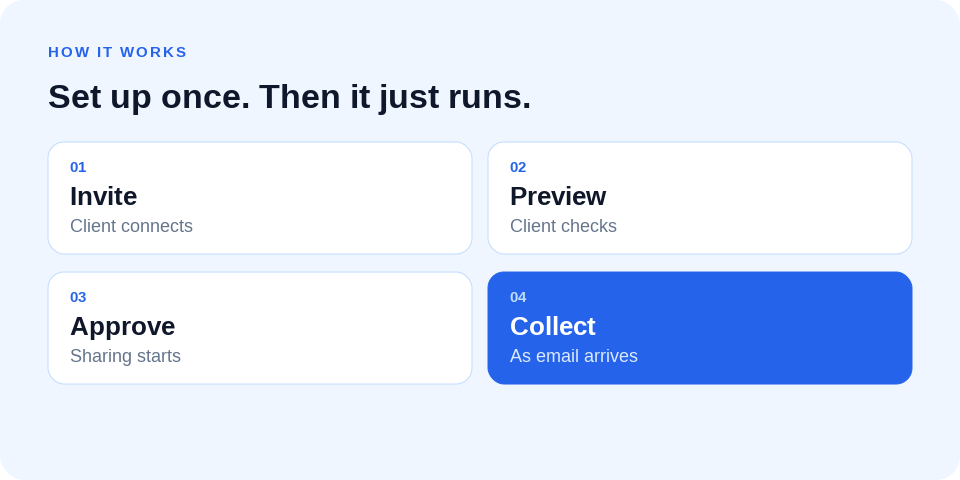
Your client connects Gmail or Outlook, previews what you'll see and approves. From then on, AI collects every invoice, receipt and statement as it arrives, plus the last 18 months.
Four steps, one setup
Set up once.
Then it just runs.
Your client does three quick things, once. Everything after that happens automatically.
01 / Invite your client
One link.
About a minute.
Add a client in Invoice Finder and send them an invite. They choose the Gmail or Outlook account they use for business and sign in with their email provider. No passwords are shared.
Send them the business-owner page too. It explains, in plain language, exactly what you can and can't see.
02 / Preview and approve
Your client sees what you'll see. First.
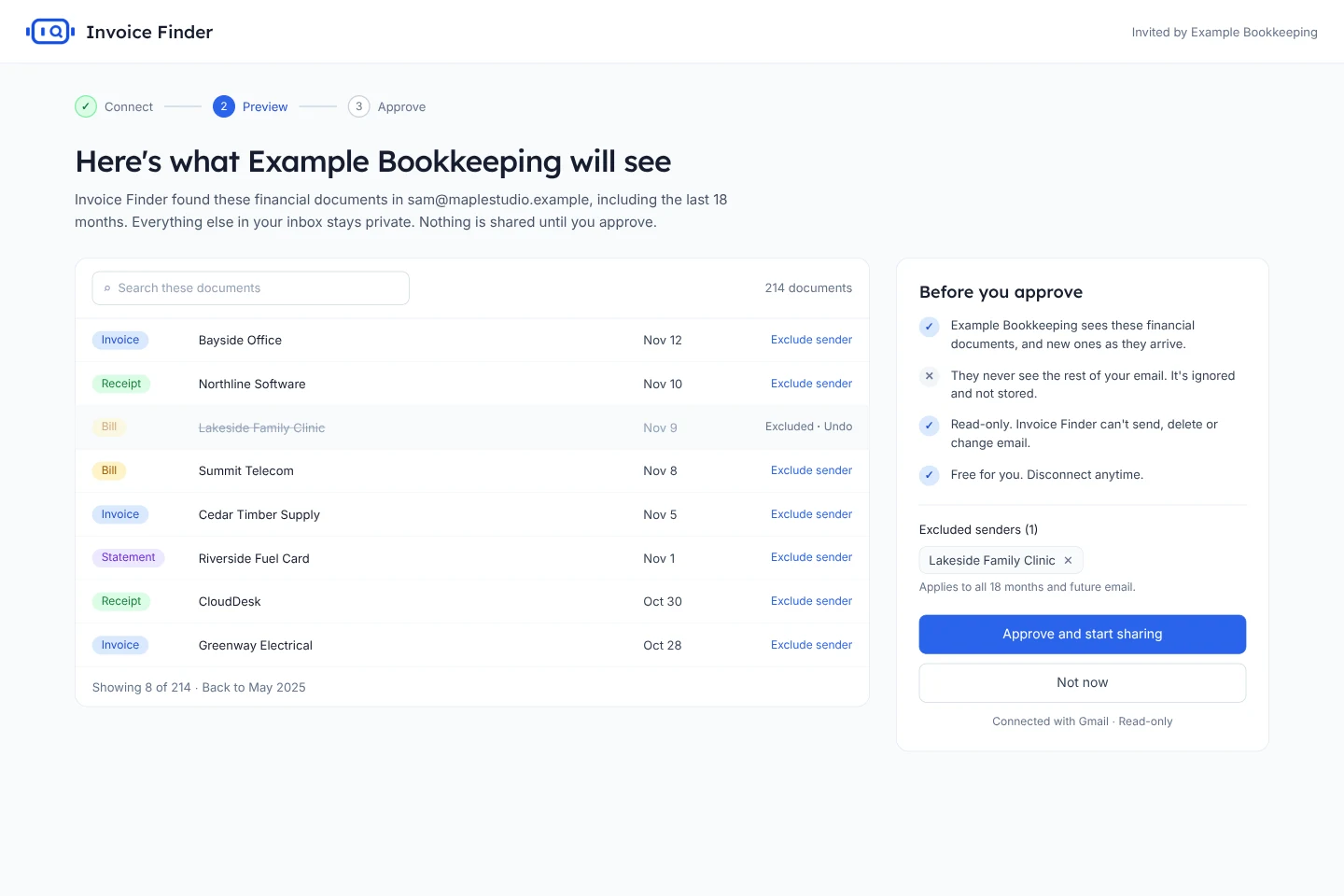
Before anything is shared, your client previews the documents Invoice Finder found, including the last 18 months. They can search them and exclude any sender they'd rather keep private.
When they approve, sharing starts. Until then, you see nothing.
Preview
The same financial documents you'll see, before you see them.
Exclude senders
Excluded senders are never shared, including across the 18-month history.
Approve
One clear decision from the account owner starts sharing.
03 / Collect automatically
Every invoice.
As it arrives.
AI checks each new email in the connected mailbox. Invoices, receipts, bills, statements and credit notes go to that client's financial inbox. Everything else is ignored and not stored.
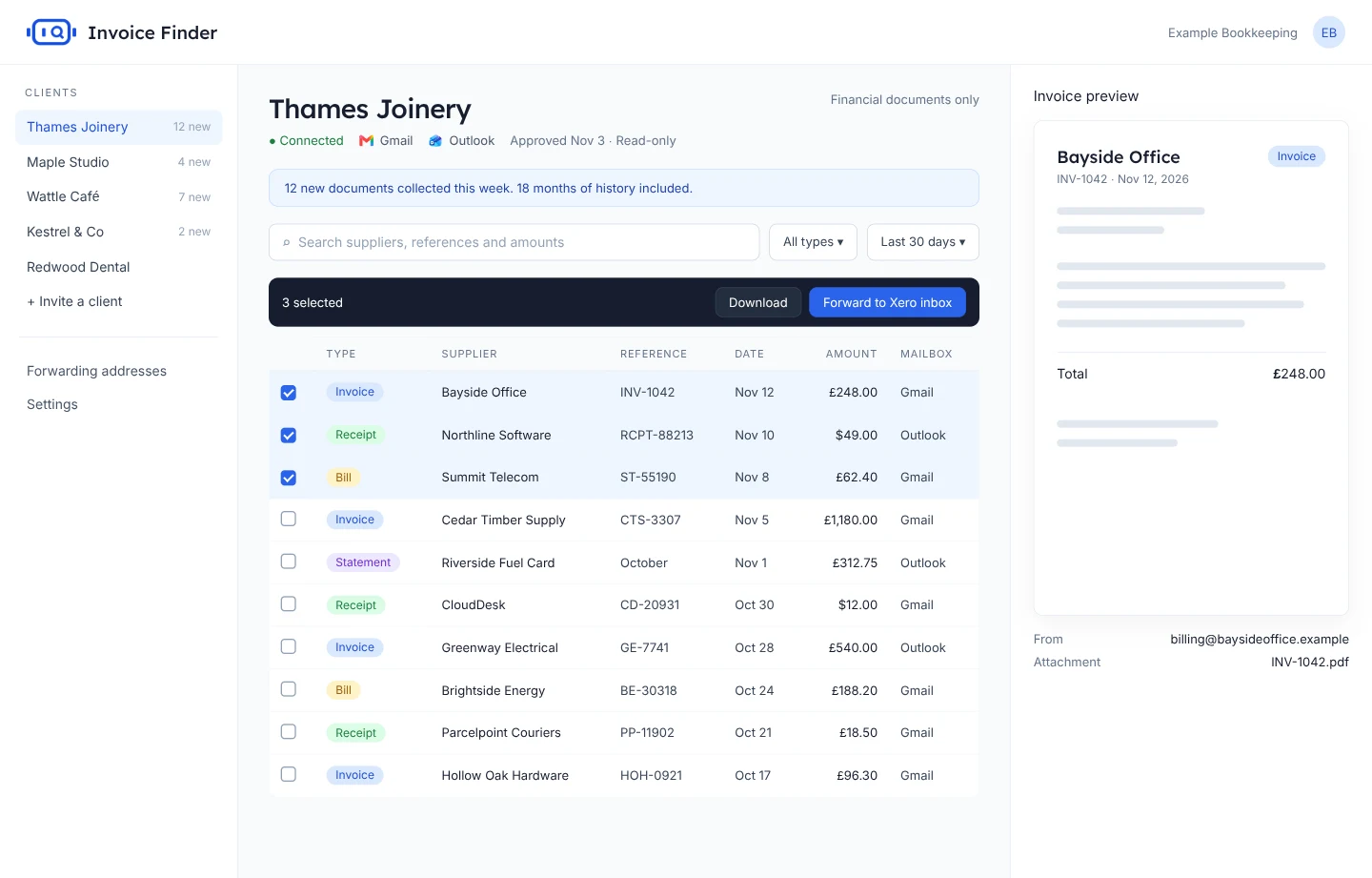
Search a client's financial inbox by supplier, date or document type. Search only covers financial documents, so there's no way to browse the rest of the inbox.
A familiar example: a monthly software subscription shows up on the bank feed. The receipt reached your client's inbox the same day, so it's already in their financial inbox. No reminder, no waiting.
04 / Download or forward
Get documents where you need them.
Select documents and download them in bulk, or forward them in bulk to a saved email address, such as the email-in address for Xero, QuickBooks, Dext or AutoEntry.
Bulk download
Every document you select, in one go.
Bulk forward
Send documents to a saved address in a few clicks.
Your process stays yours
Coding, reconciliation and review stay in the tools you already use.
Questions
A few useful answers.
Does my client need to do anything after approving?
No. Once they approve, new invoices and receipts are collected as they arrive. They only need to act again if they want to change exclusions or disconnect.
How far back does Invoice Finder look?
18 months: a full year of books, plus six months to wrap it up. Your client previews that history before anything is shared.
Can I see email that isn't a financial document?
No. You only see email the AI classifies as a financial document, and search only covers those documents.
How do documents get into my accounting software?
Download them in bulk, or forward them in bulk to a saved email address, such as the email-in address for Xero, QuickBooks, Dext or AutoEntry.
What happens if a client disconnects?
Access stops instantly and nothing new is collected. Documents already shared stay available to you for 30 days, then are deleted from Invoice Finder.
When can I use Invoice Finder?
Invoice Finder is coming soon. Get notified and we'll email you when it launches.
Invoice Finder · Coming soon
Make next month-end
the one without the chasing.
Be first to know when Invoice Finder launches.