The practical answer
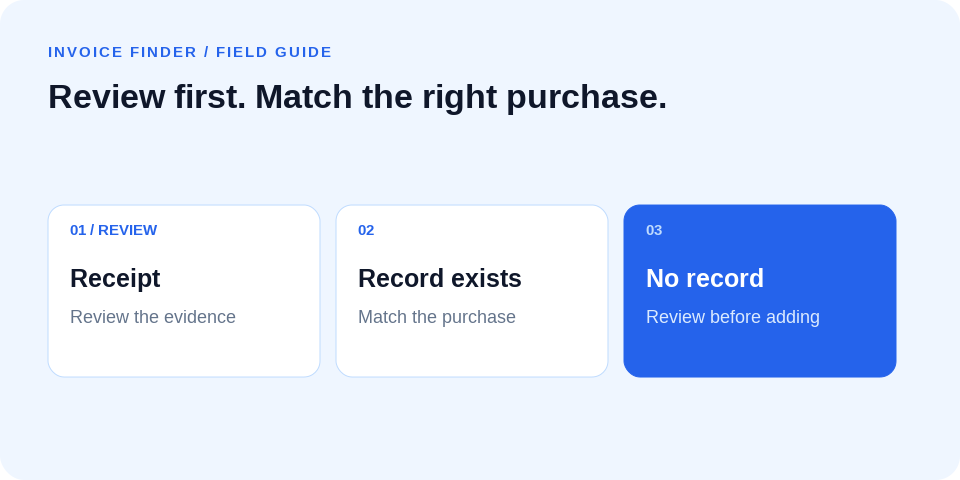
Check the existing record, retrieve the document, then review receipt capture and match the correct transaction where appropriate. Create a new expense only when the purchase is genuinely absent and that action is correct.
Build a missing-document list in QuickBooks Online
Start with the expense, bill or bank transaction being reviewed. Open the relevant record and check whether supporting evidence is already attached. An uncategorized bank item, an unmatched receipt and a recorded expense without a file are different situations.
Use one exception list rather than assuming a single report will identify every missing document in every QuickBooks Online account. Record supplier, date, amount/currency, business and the existing transaction reference. Note whether the issue is no file, the wrong file or insufficient purchase detail.
This guide is for QuickBooks Online. Navigation and receipt features can differ by region, subscription and interface, so use the controls available in your account and refer to the linked Intuit guidance.
Retrieve the invoice or receipt from the source
Search the authorized mailbox that received the purchase email. Try the supplier or merchant name and a generous date window, then a billing address or known order reference. A bank descriptor may identify a payment platform rather than the underlying supplier.
{invoice receipt} after:2026/10/01 before:2026/12/01Remove attachment conditions if you expect a receipt in the message body. Check the supplier’s trusted billing portal if email contains only a link. If no document is available, ask for a copy of the original rather than inventing a replacement record.
Use the Gmail receipt guide for email-body and subscription receipts. Coming soon: Invoice Finder collects your clients’ invoices and receipts from Gmail and Outlook as they arrive, and you can forward them in bulk to your QuickBooks email-in address. See how it works.
Review the receipt capture workflow
QuickBooks Online can accept uploaded receipts and bills. Intuit’s current guide describes opening All apps → Accounting → Receipts, uploading from the computer or supported source, then reviewing the item. Menu wording may differ in your account.
Upload a clear file containing one receipt or bill. Review the extracted information against the document rather than treating the suggested fields as a completed accounting decision. Intuit advises against uploading receipts containing sensitive personal identifiers or card information.
Keep a reference to the existing record while reviewing. The aim is to add evidence to the correct purchase, not to create a second expense because the receipt arrived later.
Match an existing transaction before creating a new one
If the purchase is already recorded, inspect the suggested matches and choose the correct existing record. Intuit’s receipt guidance describes a Match action when a candidate exists and review steps when there are several possibilities.
| Your situation | Next decision |
|---|---|
| The expense or bill already exists | Review and match the correct existing record. |
| Several records look similar | Check supplier, date, reference and amount/currency. |
| No record is found | Check whether one exists elsewhere before creating anything. |
| A bank item is still under review | Check its relationship to the receipt and existing purchase. |
Create a new expense or bill only when that is the correct accounting action and the purchase is not already recorded. If receipt capture and the bank feed both suggest creating something, resolve which record represents the purchase before proceeding.
Matching a document in a receipt workflow does not automatically answer every bank reconciliation or coding question. Keep those review steps explicit.
Verify that the right evidence is attached
- Open the expense or bill associated with the purchase.
- Check the attached file or the result of the receipt match.
- Confirm supplier, recipient business, reference, period and readable totals.
- Ensure a similar monthly receipt has not been attached by mistake.
- Update the exception list with the correct record and completion status.
Do not mark an item complete solely because a receipt thumbnail exists in a review queue. Confirm the document is associated with the intended transaction and can be opened by the appropriate reviewer.
For current receipt-upload and matching instructions, use Intuit’s official QuickBooks Online receipt guide.
Improve the next collection cycle
Ask where the missing file should have entered the process. A recurring software invoice might arrive in a former staff member’s email; a staff card receipt might still be in a phone; a supplier might issue invoices only in its portal.
Give each source an owner and an agreed intake route. Use a monthly document checklist to test completeness and a specific request email for gaps. Review recurring exceptions so the same missing receipt does not generate the same conversation next month.
Provider instructions checked on 25 November 2026: Intuit: upload and match receipts, Google: search operators. Menu labels can vary by account, region and interface.